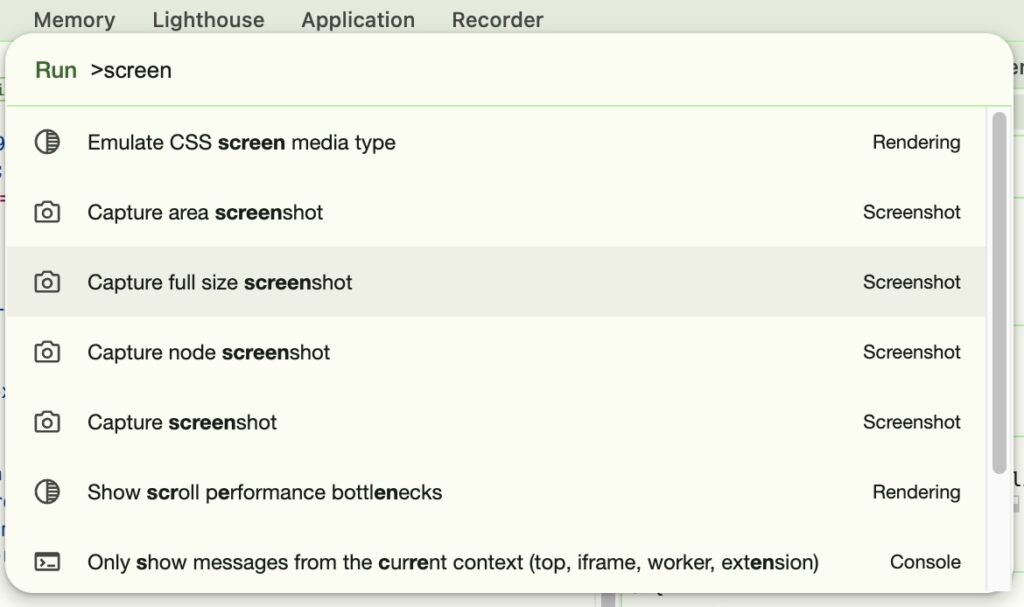
Taking a screenshot of what you can SEE on a web page is easy… what about capturing the entire page that scrolls down for multiple screens? The old-fashioned (and painful) method is to take multiple images and try to stitch them together or just paste them in a Word doc and look at them all.
Chrome to the rescue…
- With the page open, press the [F12] key to open Inspector
- On Windows, press CTRL+SHIFT+P
On Mac, press CMD+SHIFT+P - In the Search bar that appears, immediately after the word “Run” type “screen“
- Select Capture full size screenshot, and Chrome will save it to your Downloads folder