- Plug the device into your Mac via the charging cable. If this is your first time on a particular computer your device will ask you if you trust the Mac.
- Open Quicktime Player on the Mac
- From the File menu, select New Movie Recording
- By default, Quicktime will begin a preview from your Mac’s camera. Immediately to the right of the red dot for the Record button is a small dropdown arrow. Click on the arrow and select your phone’s name from the Screen category
- You don’t need to press the Record button, although you can if you’d like a video of what you’re displaying.
- When you’re finished sharing, just close the window that’s displaying your device and Quicktime will start the next recording with the default of your camera. There’s no need to change any settings when you’re finished.
Displaying your Mobile Screen on a Mac
September 8, 2026 Categories: Tech Tips
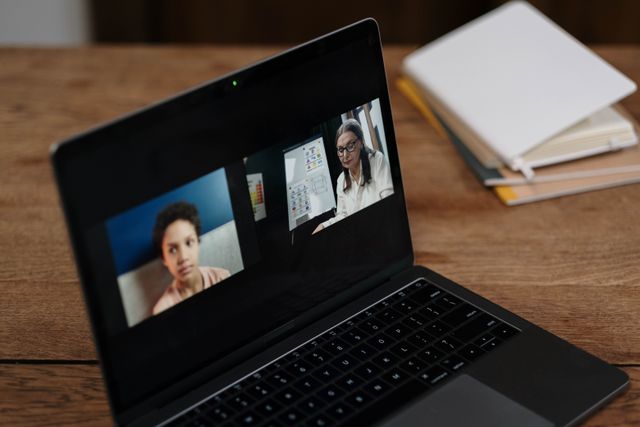
When you’re using your Mac to present during an online meeting (Zoom, WebEx, Meet, etc) there are times it could be useful to show somebody your mobile device or tablet as part of the presentation. For instance, to demonstrate an app or show how a website looks on the smaller screen. One method would be to join the meeting from both devices, however that can be complicated to toggle the sharing back and forth as well as only being able to share one device at a time.
To display your mobile or tablet as a window on your Mac: